An administrator needs to add a signature to the ransomware block list. How should the administrator complete this task?
Open a support ticket to have the new signature added. Nutanix support will provide an updated Block List file.
Add the file signature to the Blocked Files Type in the Files Console.
Search the Block List for the file signature to be added, click Add to Block List when the signature is not found in File Analytics.
Download the Block List CSV file, add the new signature, then upload the CSV.
The Answer Is:
AExplanation:
Nutanix Files, part of Nutanix Unified Storage (NUS), can protect against ransomware using integrated tools like File Analytics and Data Lens, or through integration with third-party solutions. In Question 56, we established that a third-party solution is best for signature-based ransomware prevention with a large list of malicious file signatures (300+). The administrator now needs to add a new signature to the ransomware block list, which refers to the list of malicious file signatures used for blocking.
Analysis of Options:
Option A (Open a support ticket to have the new signature added. Nutanix support will provide an updated Block List file): Correct. Nutanix Files does not natively manage a signature-based ransomware block list within its own tools (e.g., File Analytics, Data Lens), as these focus on behavioral detection (as noted in Question 56). For signature-based blocking, Nutanix integrates with third-party solutions, and the block list (signature database) is typically managed by Nutanix or the third-party provider. To add a new signature, the administrator must open a support ticket with Nutanix, who will coordinate with the third-party provider (if applicable) to update the Block List file and provide it to the customer.
Option B (Add the file signature to the Blocked Files Type in the Files Console): Incorrect. The “Blocked Files Type” in the Files Console allows administrators to blacklist specific file extensions (e.g., .exe, .bat) to prevent them from being stored on shares. This is not a ransomware block list based on signatures—it’s a simple extension-based blacklist, and file signatures (e.g., hashes or patterns used for ransomware detection) cannot be added this way.
Option C (Search the Block List for the file signature to be added, click Add to Block List when the signature is not found in File Analytics): Incorrect. File Analytics provides ransomware detection through behavioral analysis (e.g., anomaly detection, as in Question 7), not signature-based blocking. There is no “Block List” in File Analytics for managing ransomware signatures, and it does not have an “Add to Block List” option for signatures.
Option D (Download the Block List CSV file, add the new signature, then upload the CSV): Incorrect. Nutanix Files does not provide a user-editable Block List CSV file for ransomware signatures. The block list for signature-based blocking is managed by Nutanix or a third-party integration, and updates are handled through support (option A), not by manually editing a CSV file.
Why Option A?
Signature-based ransomware prevention in Nutanix Files relies on third-party integrations, as established in Question 56. The block list of malicious file signatures is not user-editable within Nutanix tools like the Files Console or File Analytics. To add a new signature, the administrator must open a support ticket with Nutanix, who will provide an updated Block List file, ensuring the new signature is properly integrated with the third-party solution.
Exact Extract from Nutanix Documentation:
From the Nutanix Files Administration Guide (available on the Nutanix Portal):
“For signature-based ransomware prevention, Nutanix Files integrates with third-party solutions that maintain a block list of malicious file signatures. To add a new signature to the block list, open a support ticket with Nutanix. Support will coordinate with the third-party provider (if applicable) and provide an updated Block List file to include the new signature.”
An administrator needs to configure Files to forward logs to a syslog server. How could the administrator complete this task?
Configure the syslog in Prism Element.
Configure the syslog in Files Console.
Use the CLI in an FSVM.
Use the CLI in a CVM.
The Answer Is:
CExplanation:
Nutanix Files, part of Nutanix Unified Storage (NUS), generates logs for file service operations, which can be forwarded to a syslog server for centralized logging and monitoring. The process to configure syslog forwarding for Nutanix Files involves interacting with the File Server Virtual Machines (FSVMs), as they handle the file services and generate the relevant logs.
Analysis of Options:
Option A (Configure the syslog in Prism Element): Incorrect. Prism Element manages cluster-level settings, such as storage and VM configurations, but it does not provide a direct interface to configure syslog forwarding for Nutanix Files. Syslog configuration for Files is specific to the FSVMs.
Option B (Configure the syslog in Files Console): Incorrect. The Files Console (accessible via Prism Central) is used for managing Files shares, FSVMs, and policies, but it does not have a built-in option to configure syslog forwarding. Syslog configuration requires direct interaction with the FSVMs.
Option C (Use the CLI in an FSVM): Correct. Nutanix Files logs are managed at the FSVM level, and syslog forwarding can be configured by logging into an FSVM and using the command-line interface (CLI) to set up the syslog server details. This is the standard method documented by Nutanix for enabling syslog forwarding for Files.
Option D (Use the CLI in a CVM): Incorrect. The Controller VM (CVM) manages the Nutanix cluster’s storage and services, but it does not handle Files-specific logging. Syslog configuration for Files must be done on the FSVMs, not the CVMs.
Configuration Process:
To configure syslog forwarding, the administrator would:
SSH into one of the FSVMs in the Files deployment.
Use the nutanix user account to access the FSVM CLI.
Run commands to configure the syslog server (e.g., modify the /etc/syslog.conf file or use Nutanix-specific commands to set the syslog server IP and port).
Restart the syslog service on the FSVM to apply the changes.This process ensures that Files logs are forwarded to the specified syslog server.
Exact Extract from Nutanix Documentation:
From the Nutanix Files Administration Guide (available on the Nutanix Portal):
“To forward Nutanix Files logs to a syslog server, you must configure syslog settings on each FSVM. Log in to an FSVM using SSH and the ‘nutanix’ user account. Use the CLI to update the syslog configuration by specifying the syslog server’s IP address and port. After configuration, restart the syslog service to apply the changes.”
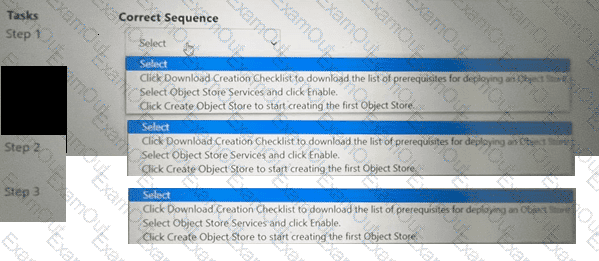
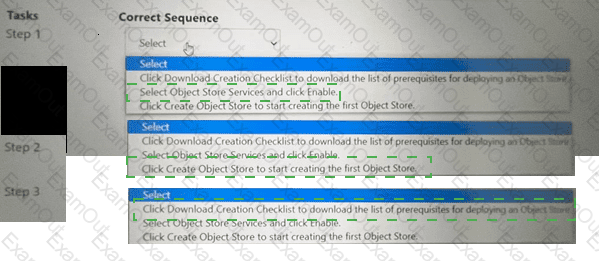
Within the Prism Central Entity > Services > Objects menu option, what is the correct task order for creating an object storage?
The Answer Is:
Explanation:
The correct task order for creating an object store is:
Select ObjectStore Service and click Enable
Click Create Object Store to start creating the first Object store
Click Download Creation Checklist to download the list of prerequisites for deploying an Object store
The first step is to enable the ObjectStore Service, which is a service that allows users to create and manage object storage clusters on a Nutanix cluster. The second step is to create an Object store, which is an object storage cluster that provides S3-compatible access to buckets and objects for various applications and users. The third step is to download the Creation Checklist, which is a document that lists the prerequisites and configurations that are required for deploying an Object store, such as cluster details, network details, storage details, etc. The administrator should review and complete the Creation Checklist before proceeding with the deployment of the Object store.
An administrator has received reports of resource issues on a file server. The administrator needs to review the following graphs, as displayed in the exhibit:
Storage Used
Open Connections
Number of Files
Top Shares by Current Capacity
Top Shares by Current ConnectionsWhere should the administrator complete this action?
Files Console Shares View
Files Console Monitoring View
Files Console Data Management View
Files Console Dashboard View
The Answer Is:
DExplanation:
Nutanix Files, part of Nutanix Unified Storage (NUS), provides a management interface called the Files Console, accessible via Prism Central. The administrator needs to review graphs related to resource usage on a file server, including Storage Used, Open Connections, Number of Files, Top Shares by Current Capacity, and Top Shares by Current Connections. These graphs provide insights into the file server’s performance and resource utilization, helping diagnose reported resource issues.
Analysis of Options:
Option A (Files Console Shares View): Incorrect. The Shares View in the Files Console displays details about individual shares (e.g., capacity, permissions, quotas), but it does not provide high-level graphs like Storage Used, Open Connections, or Top Shares by Current Capacity/Connections. It focuses on share-specific settings, not overall file server metrics.
Option B (Files Console Monitoring View): Incorrect. While “Monitoring View” sounds plausible, there is no specific “Monitoring View” tab in the Files Console. Monitoring-related data (e.g., graphs, metrics) is typically presented in the Dashboard View, not a separate Monitoring View.
Option C (Files Console Data Management View): Incorrect. There is no “Data Management View” in the Files Console. Data management tasks (e.g., Smart Tiering, as in Question 58) are handled in other sections, but graphs like Storage Used and Top Shares are not part of a dedicated Data Management View.
Option D (Files Console Dashboard View): Correct. The Dashboard View in the Files Console provides an overview of the file server’s performance and resource usage through various graphs and metrics. It includes graphs such as Storage Used (total storage consumption), Open Connections (active client connections), Number of Files (total files across shares), Top Shares by Current Capacity (shares consuming the most storage), and Top Shares by Current Connections (shares with the most active connections). This view is designed to help administrators monitor and troubleshoot resource issues, making it the correct location for reviewing these graphs.
Why Option D?
The Files Console Dashboard View is the central location for monitoring file server metrics through graphs like Storage Used, Open Connections, Number of Files, and Top Shares by Capacity/Connections. These graphs provide a high-level overview of resource utilization, allowing the administrator to diagnose reported resource issues effectively.
Exact Extract from Nutanix Documentation:
From the Nutanix Files Administration Guide (available on the Nutanix Portal):
“The Files Console Dashboard View provides an overview of file server performance and resource usage through graphs, including Storage Used, Open Connections, Number of Files, Top Shares by Current Capacity, and Top Shares by Current Connections. Use the Dashboard View to monitor and troubleshoot resource issues on the file server.”
Users are complaining about having to reconnect to a share when there are networking issues. Which Files feature should the administrator enable to ensure the sessions will auto-reconnect in such events?
Durable File Handles
Multi-Protocol Shares
Connected Shares
Workload Optimization
The Answer Is:
AExplanation:
Nutanix Files, part of Nutanix Unified Storage (NUS), provides file sharing services via protocols like SMB and NFS. In environments where users access SMB shares, network interruptions can cause sessions to disconnect, requiring users to manually reconnect. Nutanix Files offers a feature to mitigate this issue for SMB shares.
Analysis of Options:
Option A (Durable File Handles): Correct. Durable File Handles is an SMB feature in Nutanix Files that allows client sessions to automatically reconnect after temporary network interruptions. When enabled, it ensures that file handles remain valid during brief disconnects, allowing the client to resume the session without manual intervention.
Option B (Multi-Protocol Shares): Incorrect. Multi-Protocol Shares allow a share to be accessed via both SMB and NFS, but this feature does not address session reconnection during network issues.
Option C (Connected Shares): Incorrect. “Connected Shares” is not a feature in Nutanix Files. This appears to be a made-up term and does not apply to session reconnection.
Option D (Workload Optimization): Incorrect. Workload Optimization in Nutanix Files involves adjusting the number of FSVMs or resources for performance (as noted in Question 13), but it does not address session reconnection for network issues.
Why Durable File Handles?
Durable File Handles is an SMB 2.1+ feature supported by Nutanix Files. It ensures that file handles persist during network disruptions, allowing clients to auto-reconnect without losing their session state, which directly addresses the users’ complaint.
Exact Extract from Nutanix Documentation:
From the Nutanix Files Administration Guide (available on the Nutanix Portal):
“Durable File Handles is an SMB feature that allows clients to automatically reconnect to a share after temporary network interruptions. When enabled on a Nutanix Files share, it ensures that file handles remain valid, preventing users from having to manually reconnect during brief network outages.”
An administrator needs to protect a Files cluster unique policies for different shares.
How should the administrator meet this requirement?
Create a protection domain in the Data Protection view in Prism Element.
Configure data protection polices in File Server view in Prism Element
Create a protection domain in the Data Protection view in Prism Central.
Configure data protection polices in the Files view in Prism Central.
The Answer Is:
DExplanation:
The administrator can meet this requirement by configuring data protection policies in the Files view in Prism Central. Data protection policies are policies that define how file data is protected by taking snapshots, replicating them to another site, or tiering them to cloud storage. Data protection policies can be configured for each share or export in a file server in the Files view in Prism Central. The administrator can create different data protection policies for different shares or exports based on their protection needs and requirements. References: Nutanix Files Administration Guide, page 79; Nutanix Files Solution Guide, page 9
Life Cycle Manager must have compatible versions of which two components before installing or upgrading Files? (Choose two.)
Nutanix Cluster Check
Active Directory Services
File Server Module
Acropolis Operating System
The Answer Is:
A, DExplanation:
Nutanix Files, part of Nutanix Unified Storage (NUS), can be installed or upgraded using Life Cycle Manager (LCM), a tool in Prism Central or Prism Element for managing software updates. Before installing or upgrading Files, LCM must ensure that the underlying components are compatible to avoid issues during the process.
Analysis of Options:
Option A (Nutanix Cluster Check): Correct. Nutanix Cluster Check (NCC) is a health and compatibility checking tool integrated with LCM. LCM requires a compatible version of NCC to perform pre-upgrade checks and validate the cluster’s readiness for a Files installation or upgrade. NCC ensures that the cluster environment (e.g., hardware, firmware, software) is compatible with the Files version being installed or upgraded.
Option B (Active Directory Services): Incorrect. Active Directory (AD) Services are used by Nutanix Files for user authentication (e.g., for SMB shares or multiprotocol access, as in Question 60), but AD is not a component managed by LCM, nor is it a prerequisite for LCM compatibility. AD configuration is a separate requirement for Files functionality, not LCM operations.
Option C (File Server Module): Incorrect. There is no “File Server Module” component in Nutanix terminology. Nutanix Files itself consists of File Server Virtual Machines (FSVMs), but this is the component being upgraded, not a prerequisite for LCM. LCM manages the Files upgrade directly and does not require a separate “module” compatibility.
Option D (Acropolis Operating System): Correct. The Acropolis Operating System (AOS) is the core operating system of the Nutanix cluster, managing storage, compute, and virtualization. LCM requires a compatible AOS version to install or upgrade Files, as Files relies on AOS features (e.g., storage, networking) and APIs. LCM checks the AOS version to ensure it meets the minimum requirements for the target Files version.
Selected Components:
A: NCC ensures cluster compatibility and readiness, which LCM relies on for Files installation or upgrades.
D: AOS provides the underlying platform for Files, and LCM must ensure its version is compatible with the Files version being deployed.
Exact Extract from Nutanix Documentation:
From the Nutanix Files Administration Guide (available on the Nutanix Portal):
“Before installing or upgrading Nutanix Files using Life Cycle Manager (LCM), ensure that LCM has compatible versions of Nutanix Cluster Check (NCC) and Acropolis Operating System (AOS). NCC performs pre-upgrade checks to validate cluster readiness, while AOS must meet the minimum version requirements for the target Files version.”
Which prerequisite is required to deploy Objects on AHV or ESXi?
Prism Central version is 5.17.1 or later
Port 9440 is accessible on both PE and PC
Valid SSL Certificate
Nutanix STARTER License
The Answer Is:
BExplanation:
Nutanix Objects, part of Nutanix Unified Storage (NUS), is an S3-compatible object storage solution that can be deployed on AHV or ESXi hypervisors. Deploying Objects has specific prerequisites to ensure successful installation and operation.
Analysis of Options:
Option A (Prism Central version is 5.17.1 or later): Incorrect. While Nutanix Objects requires Prism Central for deployment and management, the minimum version for Objects deployment is typically lower (e.g., Prism Central 5.15 or later, depending on the Objects version). Version 5.17.1 is not a specific requirement for Objects deployment on AHV or ESXi.
Option B (Port 9440 is accessible on both PE and PC): Correct. Port 9440 is used for communication between Prism Element (PE) and Prism Central (PC), as well as for internal Nutanix services. When deploying Objects, Prism Central communicates with the cluster (via Prism Element) to deploy Object Store Service VMs. This communication requires port 9440 to be open between PE and PC, making it a key prerequisite.
Option C (Valid SSL Certificate): Incorrect. While a valid SSL certificate is recommended for secure communication (e.g., for S3 API access), it is not a strict prerequisite for deploying Objects. Objects can be deployed with self-signed certificates, though Nutanix recommends replacing them with valid certificates for production use.
Option D (Nutanix STARTER License): Incorrect. The Nutanix STARTER license is an entry-level license for basic cluster functionality (e.g., VMs, storage). However, Nutanix Objects requires a separate license (e.g., Objects license or a higher-tier AOS license like Pro or Ultimate). The STARTER license alone does not support Objects deployment.
Why Option B?
Port 9440 is critical for communication between Prism Element and Prism Central during the deployment of Objects. If this port is blocked, the deployment will fail, as Prism Central cannot communicate with the cluster to deploy the Object Store Service VMs.
Exact Extract from Nutanix Documentation:
From the Nutanix Objects Deployment Guide (available on the Nutanix Portal):
“Before deploying Nutanix Objects on AHV or ESXi, ensure that port 9440 is accessible between Prism Element (PE) and Prism Central (PC). This port is required for communication during the deployment process, as Prism Central manages the deployment of Object Store Service VMs on the cluster.”
What is a prerequisite for deploying Smart DR?
Open TCP port 7515 on all client network IPs uni-directionally on the source and recovery file servers.
The primary and recovery file servers must have the same domain name.
Requires one-to-many shares.
The Files Manager must have at least three file servers.
The Answer Is:
BExplanation:
Smart DR in Nutanix Files, part of Nutanix Unified Storage (NUS), simplifies disaster recovery (DR) by automating replication policies between file servers (e.g., using NearSync, as seen in Question 24). Deploying Smart DR has specific prerequisites to ensure compatibility and successful replication between the primary and recovery file servers.
Analysis of Options:
Option A (Open TCP port 7515 on all client network IPs uni-directionally on the source and recovery file servers): Incorrect. Port 7515 is not a standard port for Nutanix Files or Smart DR communication. Smart DR replication typically uses ports like 2009 and 2020 for data transfer between FSVMs, and port 9440 for communication with Prism Central (as noted in Question 45). The client network IPs (used for SMB/NFS traffic) are not involved in Smart DR replication traffic, and uni-directional port opening is not a requirement.
Option B (The primary and recovery file servers must have the same domain name): Correct. Smart DR requires that the primary and recovery file servers are joined to the same Active Directory (AD) domain (i.e., same domain name) to ensure consistent user authentication and permissions during failover. This is a critical prerequisite, as mismatched domains can cause access issues when the recovery site takes over, especially for SMB shares relying on AD authentication.
Option C (Requires one-to-many shares): Incorrect. Smart DR does not require one-to-many shares (i.e., a single share replicated to multiple recovery sites). Nutanix Files supports one-to-one replication for shares (e.g., primary to recovery site, as seen in the exhibit for Question 24), and one-to-many replication is not a prerequisite—it’s an optional configuration not supported by Smart DR.
Option D (The Files Manager must have at least three file servers): Incorrect. “Files Manager” is not a standard Nutanix term, but assuming it refers to the Files instance or deployment, there is no requirement for three file servers. Smart DR can be deployed with a single file server on each site (primary and recovery), though three FSVMs per file server are recommended for high availability (not file servers). This option misinterprets the requirement.
Why Option B?
Smart DR ensures seamless failover between primary and recovery file servers, which requires consistent user authentication. Both file servers must be joined to the same AD domain (same domain name) to maintain user permissions and access during failover, especially for SMB shares. This is a documented prerequisite for Smart DR deployment to avoid authentication issues.
Exact Extract from Nutanix Documentation:
From the Nutanix Files Administration Guide (available on the Nutanix Portal):
“A prerequisite for deploying Smart DR is that the primary and recovery file servers must be joined to the same Active Directory domain (same domain name). This ensures consistent user authentication and permissions during failover, preventing access issues for clients.”
ionization deployed Files in multiple sites, including different geographical locations across the globe. The organization has the following requirements to improves their data management lifecycle:
• Provide a centralized management solution.
• Automate archiving tier policies for compliance purposes.
• Protect the data against ransomware.
Which solution will satisfy the organization's requirements?
Prims Central
Data Lens
Files Analytics
The Answer Is:
BExplanation:
Data Lens can provide a centralized management solution for Files deployments in multiple sites, including different geographical locations. Data Lens can also automate archiving tier policies for compliance purposes, by allowing administrators to create policies based on file attributes, such as age, size, type, or owner, and move files to a lower-cost tier or delete them after a specified period. Data Lens can also protect the data against ransomware, by allowing administrators to block malicious file signatures from being written to the file system. References: Nutanix Data Lens Administration Guide